

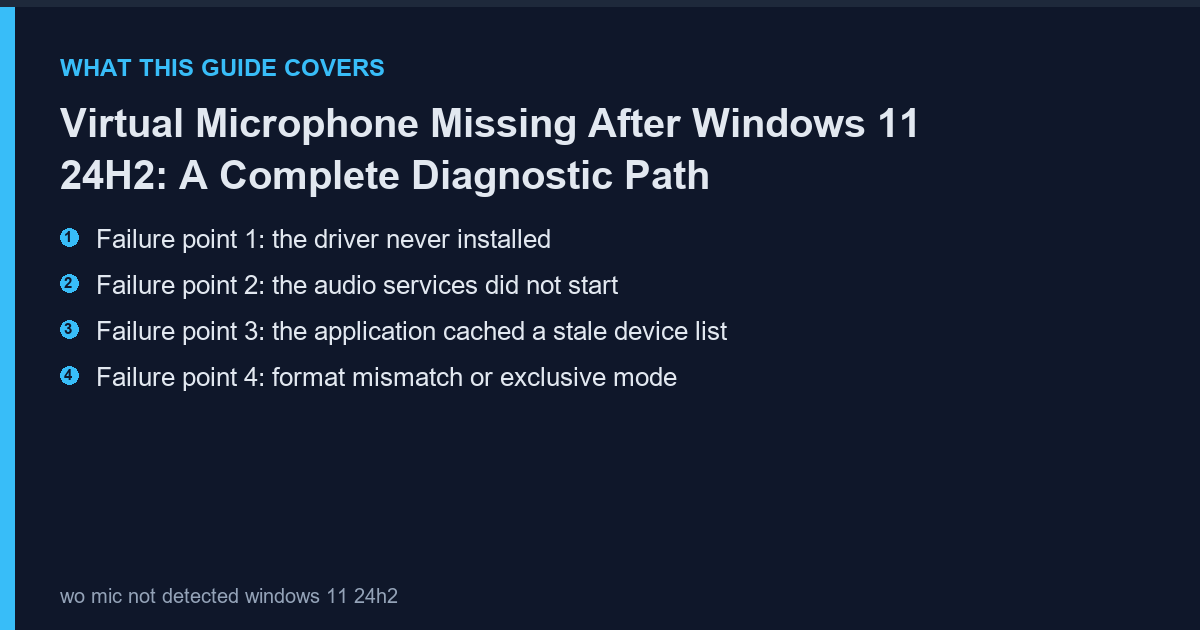
The 24H2 update changed how Windows enumerates audio endpoints and how it validates driver signatures during installation. The practical effect is that a virtual microphone can be installed correctly, appear in Device Manager, and still be absent from every application's device picker. There are four distinct failure points and they need to be checked in order, because fixing the wrong one wastes an hour.
Failure point 1: the driver never installed
A driver installation that fails silently is the most common cause. Windows 11 24H2 requires an elevated installer for kernel-mode audio drivers and will simply skip the driver step if the installer is not elevated, leaving the application files in place. Open Device Manager, choose View and then Show hidden devices, and expand Sound, video and game controllers. If the virtual device is not listed even as hidden, the driver is not installed.
- Present with no warning icon: driver is fine, look at points 2 to 4
- Present with a yellow triangle: signature or resource conflict
- Absent entirely: reinstall as administrator, do not use a standard user account
Failure point 2: the audio services did not start
Two services must be running: Windows Audio and Windows Audio Endpoint Builder. The endpoint builder is the one that fails after feature updates, and when it does the device disappears from the picker while Device Manager continues to list it. This produces the confusing symptom where the hardware looks fine and no application can see it.
- Open Services and confirm both services are Running
- If the endpoint builder stopped, start it and set it to Automatic
- A reboot after a feature update is not optional; the endpoint store is rebuilt during the first boot
Failure point 3: the application cached a stale device list
Discord, Teams, Zoom and OBS enumerate audio devices when they start and keep that list until the process exits. Minimising to the tray is not enough. If the virtual microphone was installed or reconnected after the application launched, it will not appear until the process is fully restarted.
- Quit from the tray icon, not the window close button
- Verify the process is gone in Task Manager
- Restart the application and check the picker again
Failure point 4: format mismatch or exclusive mode
Windows allows an application to take exclusive control of an audio endpoint at a specific format. If a conferencing client grabs exclusive mode at 44.1 kHz and does not release it, a second application requesting 48 kHz cannot open the device and silently falls back to the default microphone. Setting a single system-wide format of 48 kHz 16-bit and disabling exclusive mode during diagnosis removes this class of problem.
| Symptom | Most likely point | First action |
|---|---|---|
| Not in Device Manager | 1 | Reinstall as administrator |
| In Device Manager, missing from picker | 2 or 3 | Check services, restart app |
| Visible but no audio | 4 or phone side | Check format, check phone connection |
| Disappears after reboot | 2 | Endpoint builder not set to Automatic |
The clean reinstall that resolves the residue
When a feature update leaves a stale device node behind, reinstalling on top of it produces duplicated endpoints that shadow each other. The reliable sequence is to remove the device in Device Manager with the delete-driver checkbox ticked, reboot with no audio hardware connected, then install once as administrator. This rebuilds the endpoint from scratch and is faster than a Windows reset. The womic.io documents the exact order and the registry entries the installer touches, which is useful if you need to verify that the removal actually happened.
Preventing the problem on the next update
Feature updates reset parts of the audio stack roughly once a year. Keeping a note of the working device order and the installed driver version makes the repair routine rather than alarming. If you depend on a virtual microphone for work, schedule the update rather than accepting it mid-week, and test audio immediately after the first reboot.
Frequently Asked Questions
Reinstalling did not help. What next?
Remove the device with the delete-driver checkbox ticked, reboot with no audio devices attached, then install again. The stale device node is what defeats a simple reinstall.
Does rolling back to 23H2 fix it?
It restores the old enumeration behaviour, but you lose the security fixes and the next update reintroduces the problem. Repairing the endpoint is the durable answer.
Why does it work in Audacity but not in Teams?
Audacity enumerates devices on every launch, Teams caches them. That points at failure point 3, not at the driver.
Is a system restore a reasonable fix?
It works, but it is a blunt instrument that rolls back unrelated changes. Endpoint cleanup solves the same problem in minutes.